Plan the IP scheme and VLANs
Sheet G-103 · from the in-app Guide · updated 2026-10-17
The short version
- The VLANs tab is the source of truth — every VLAN dropdown in the app pulls from it.
- Give each VLAN a color, a subnet scheme and an IP start; the planner and the prints follow.
- Assign IPs stamps a whole range at once; the audit flags duplicates and out-of-subnet hosts.
01One legend rules the whole book
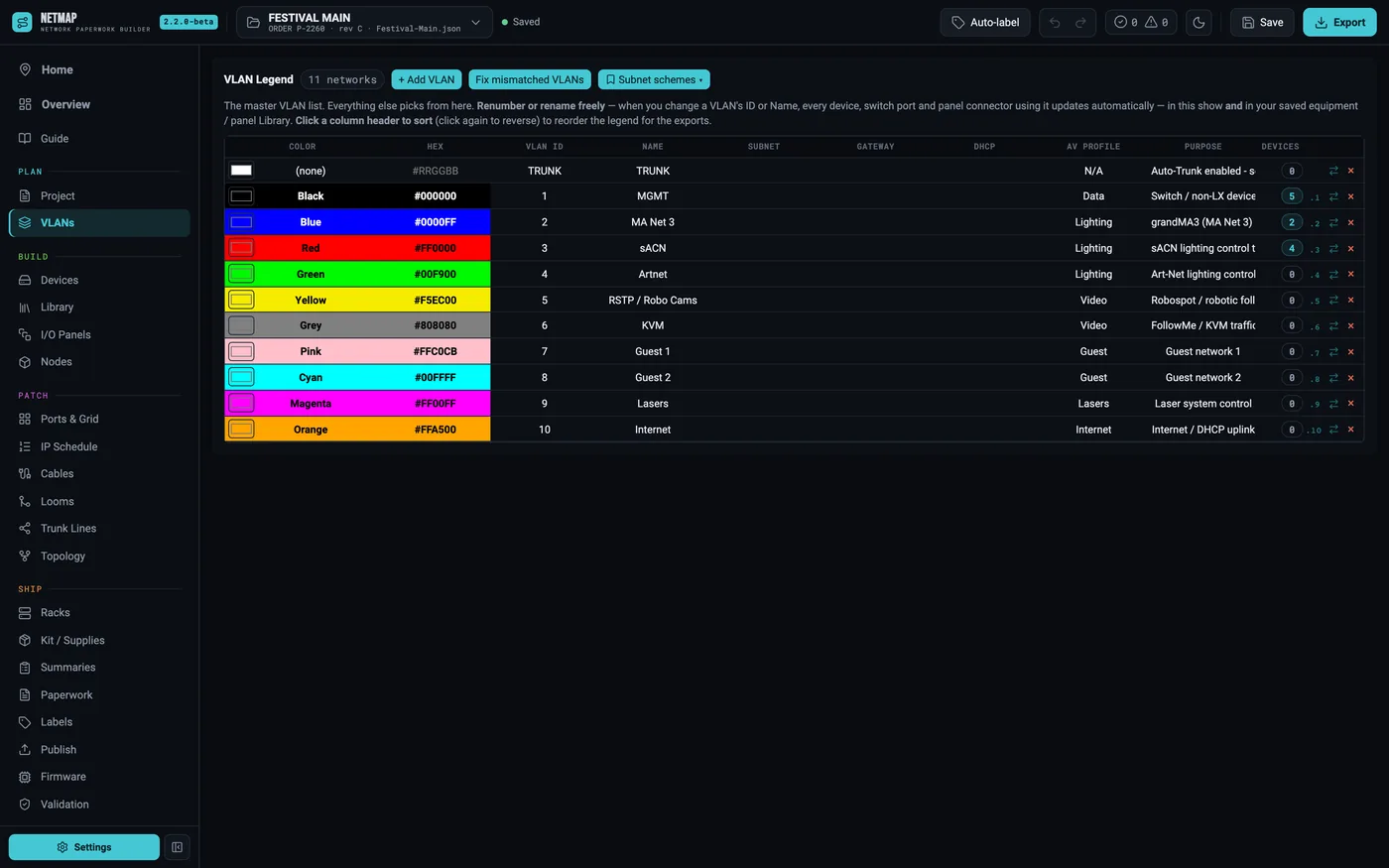
Every VLAN gets a number, a name and a color. That color travels everywhere the VLAN appears — device cells, the switch grid, I/O-panel coding rings, and the prints — with label text auto-switching black or white for contrast. The demo ships a worked touring legend (MGMT, MA Net 3, sACN, Artnet, RSTP / Robo Cams, KVM, Guest 1/2, Lasers, Internet) you can copy into your own defaults, while a fresh install starts blank so it never carries another shop's scheme, and you can renumber or rename freely: leave the cell and every device, switch port and panel connector using that VLAN updates, in the show and in your saved Library.
The point is sequencing: the show's whole addressing scheme is designed here, on one sheet, before a single device exists. Per-VLAN subnet schemes and IP starts set the pattern the IP planner fills in later.
02Set up M4250 VLANs for sACN
The concrete case, start to finish:
- On VLANs, confirm the sACN row — number, color, subnet (say 10.101.0.0/16). Its first host and step are set once in the Assign IPs scheme editor and stick to the legend row.
- On Devices, add the NETGEAR M4250 and set its Type to Switch, then open its Edit editor — the Switch ports section lays out the ports, sets copper vs SFP/SFP+, and lets you note transceivers to order.
- In the builder (or the Ports & Grid screen), pick sACN in the Paint VLAN box and click the ports that carry it. The color lands on the grid live.
- Save the port map as a plan preset — next show, stamp the same layout onto any M4250 in seconds.
The Connected Device picker puts devices already on that port's VLAN at the top of the list, then everything else — so the right device is one keystroke away, and nothing is hidden from you.
03Assign IPs in bulk
Typing addresses one at a time is how mistakes happen. Assign IPs (Devices toolbar) stamps a sequential range onto a set of devices: tick them in the order you want, set a Start IP and step, optionally a subnet and VLAN, and apply. A next-free helper and a collision check ride along. For one-offs, ⌘/Ctrl+D fills a column down and increments IPs as it goes.
04The live Master IP Schedule
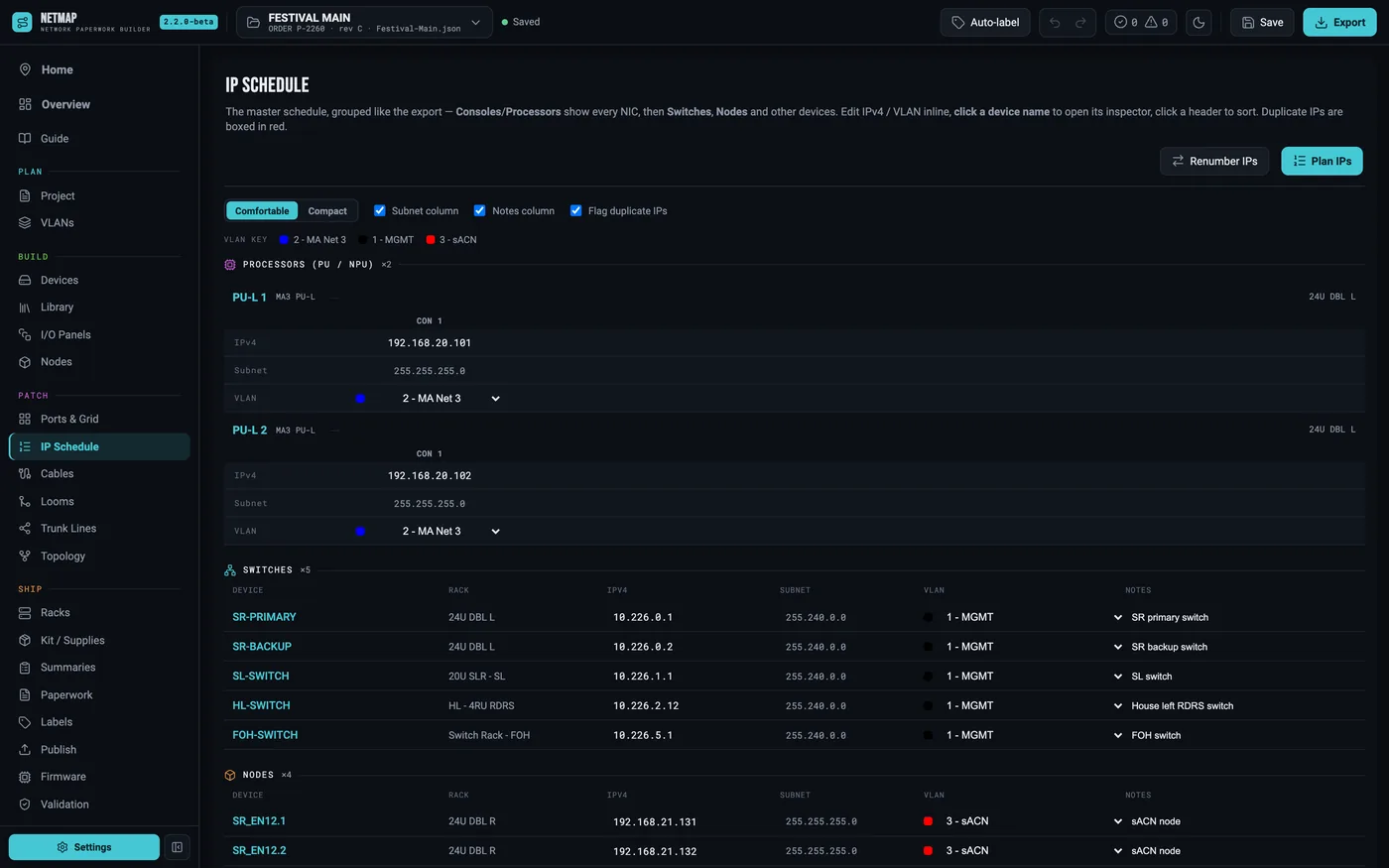
The IP Schedule tab is the exported Master IP Schedule, live and editable: consoles and processors with each NIC side by side, then switches, nodes with their output universes, opto splitters, RoboSpot follow-spot systems, and everything else addressed. Edit an IPv4, subnet or VLAN here and the device updates everywhere. Duplicate IPs are boxed in red on the spot.
05Audit before it ships
The IP / Subnet auditor groups every address by subnet, flags duplicates and hosts sitting outside their subnet, and shows the gaps. It's the quick sanity pass before the package goes out — the same checks also feed validation, so the error chip catches the scheme drifting while you work.